
Learn TilOps in 5 steps.
About 15 minutes. You'll send your first bill today.
14 days free. No card.
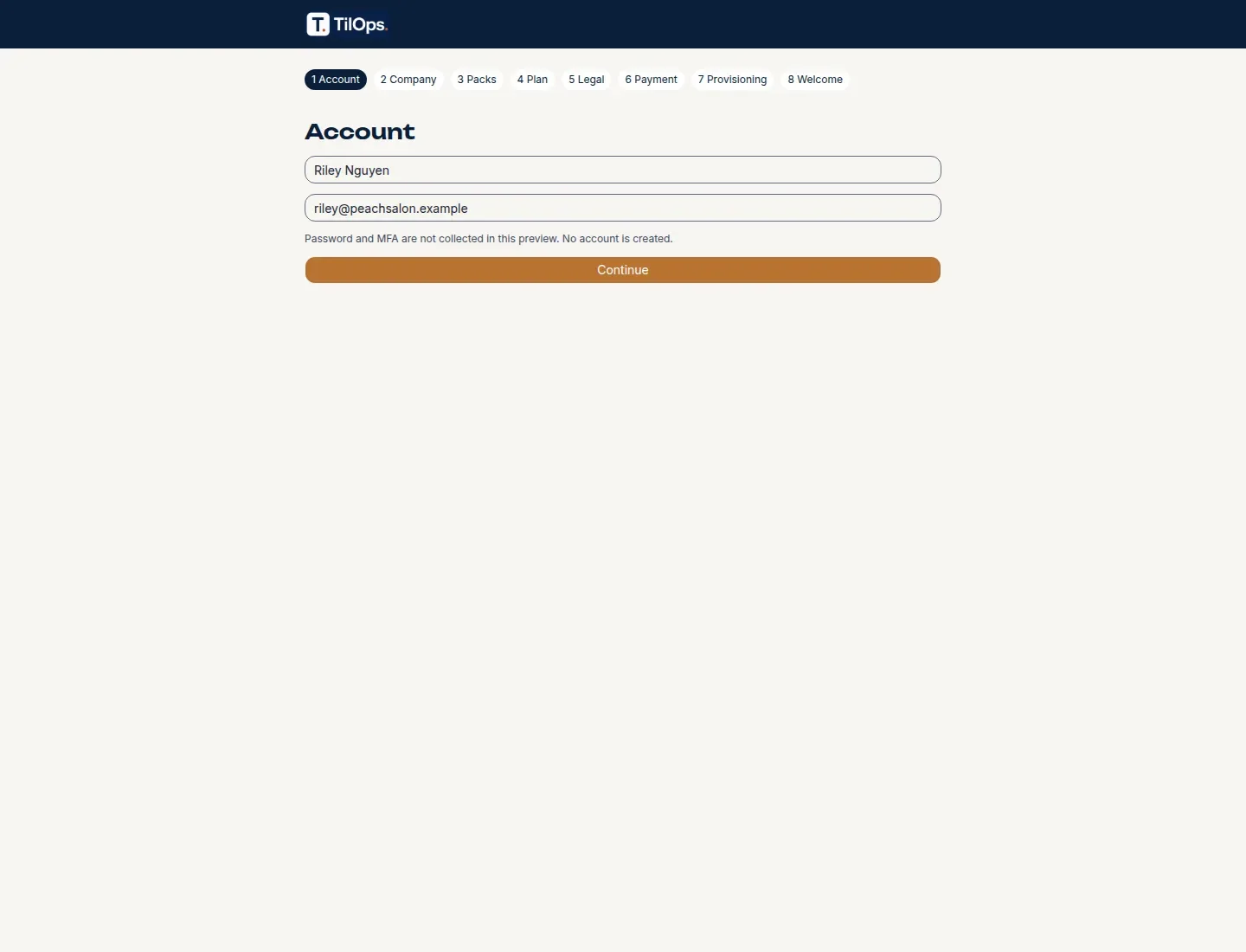
Start your trial.
Pick a plan and make your account. No card.
- Go to tilops.com and click Start free trial.
- Pick a plan: Solo, Growth, or Business. You can change later.
- Type your name, email, and a password. No card.
- You see: the Today screen, ready for your first customer.
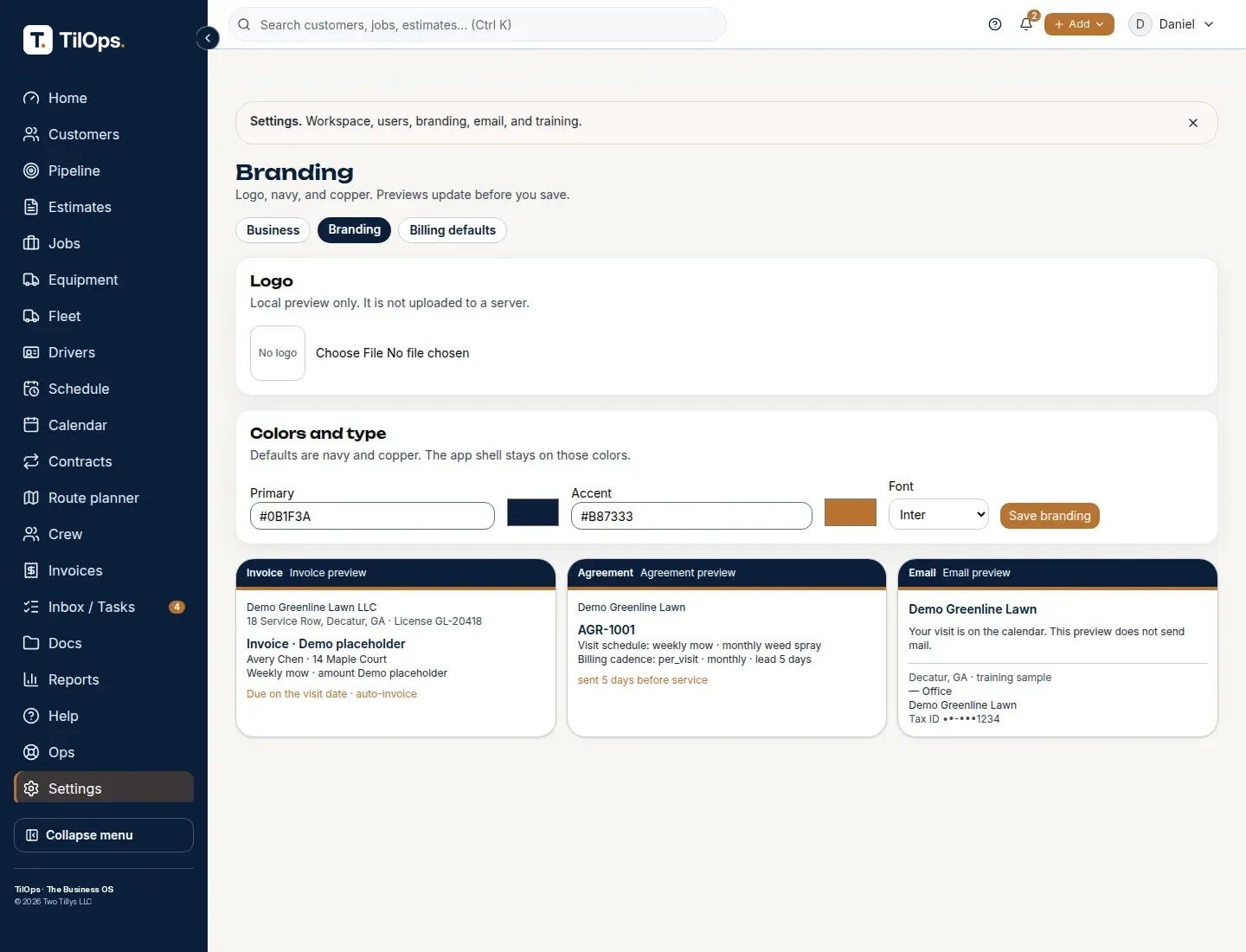
Add your logo and colors.
Set your brand once. Quotes and bills use it.
- Click Settings, then Branding.
- Add your logo and pick your colors.
- You see: a live preview with your brand.
- Optional: turn on an industry pack in Settings → Industries.
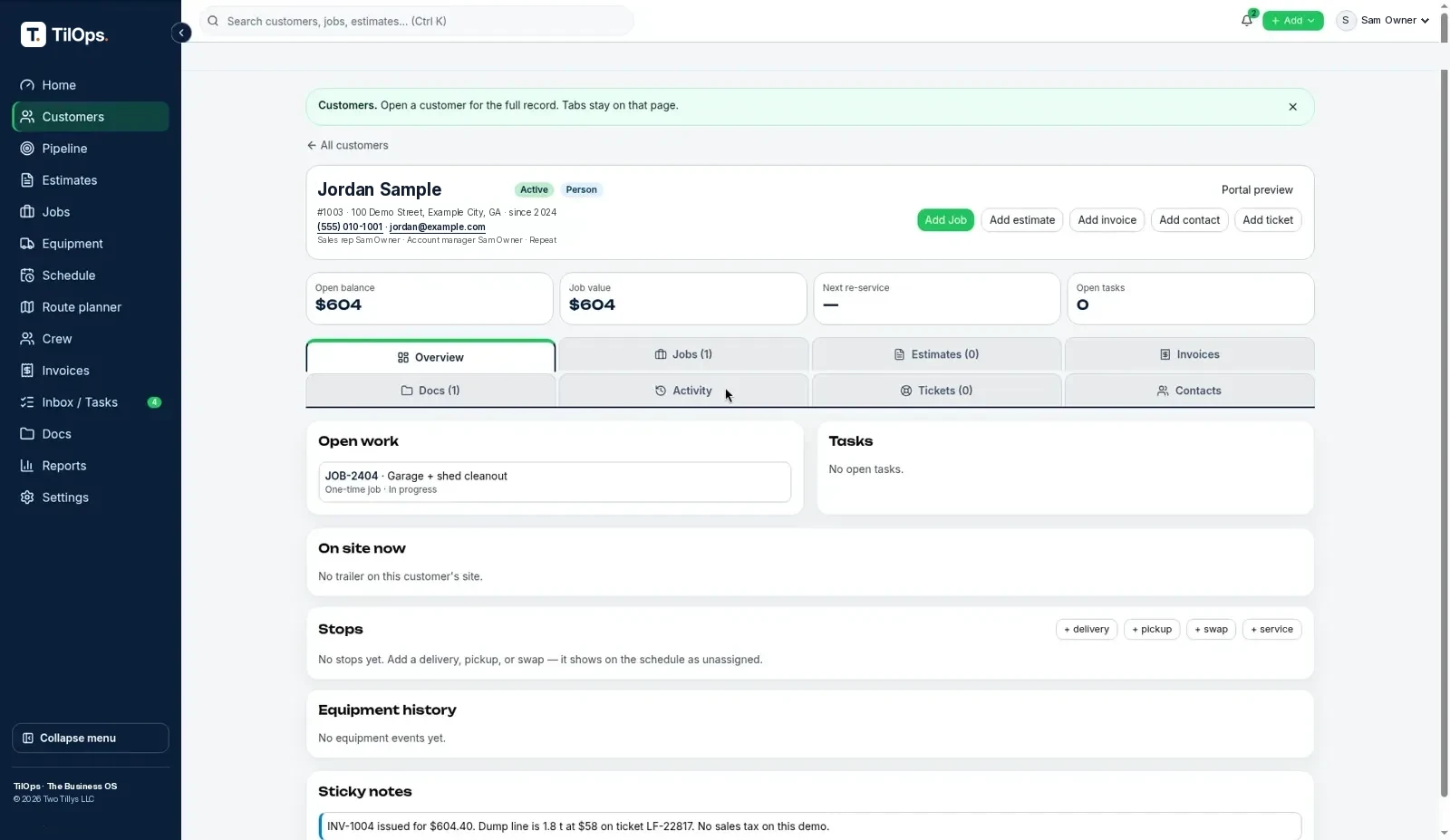
Add a customer.
Every quote, job, and bill links to this page.
- Open Customers and click New customer.
- Type a name and phone. Add an email and street if you have them.
- Click Save customer.
- You see: their customer page, with quotes, jobs, and bills in one place.
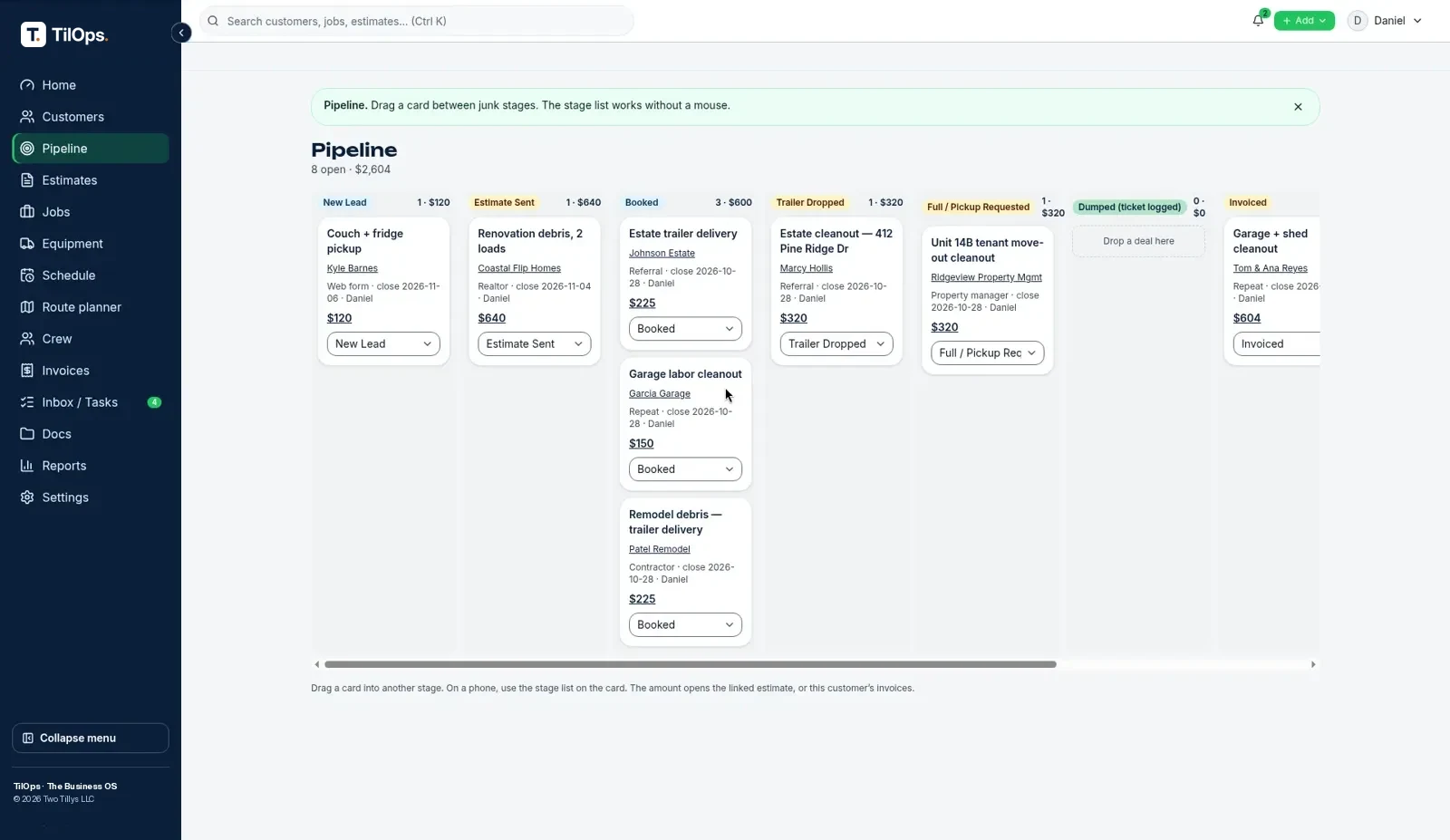
Send a quote, then schedule the job.
Win the work, then put it on the calendar.
- Open Estimates and click New estimate.
- Pick the customer and add your line items. Then send it to them.
- When they say yes, click Convert to job.
- Open Schedule and put the job on a day and a person.
- You see: the job on the calendar for your team.
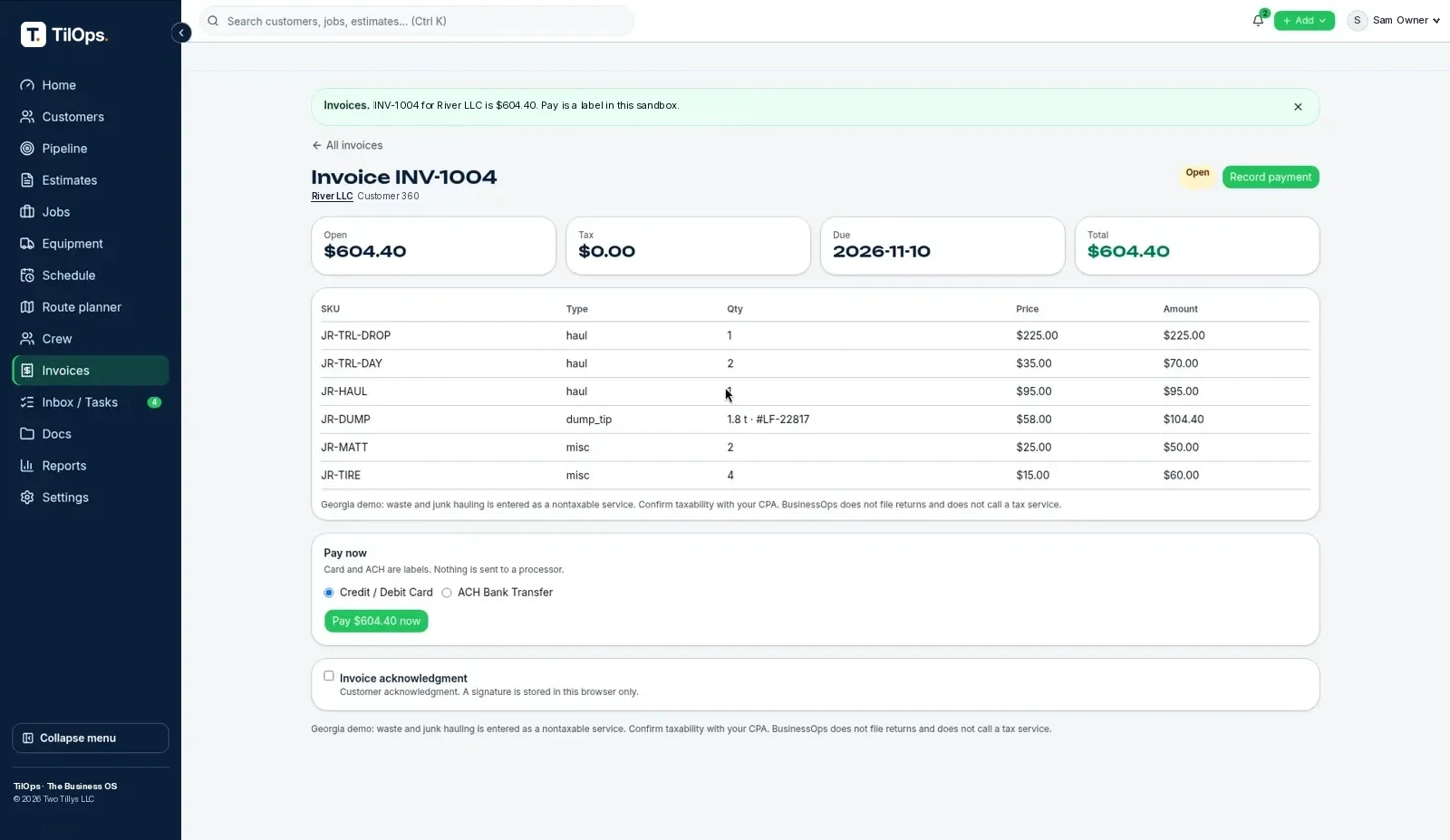
Send the bill.
Get paid by card or bank.
- When the job is done, open Invoices and click Create invoice.
- Check the lines and send it to the customer.
- The customer pays by card or bank online.
- You see: the bill marked paid, and money owed on Today goes down.
Optional: Set up work email
Set up your work email in 5 steps
A work email like you@yourbusiness.com looks real to customers. Here’s how to get one and connect it to TilOps. TilOps does not sell domains or email.
- Get your web name (domain), if you don't have one.
- A domain is your business name on the web, like yourbusiness.com.
- Buy it from a domain seller (a “registrar”). You can also buy one while you sign up for Google Workspace or Microsoft 365.
- Already have a website name? Skip this step.
- Pick your email service: Google Workspace or Microsoft 365.
- Google Workspace gives you Gmail with your name on it.
- Microsoft 365 gives you Outlook with your name on it.
- Both work with TilOps. Pick the one your team knows best.
- Sign up on their website. They charge a monthly fee.
- Prove you own the domain (DNS / verify).
- DNS is the settings page for your domain at the place you bought it.
- Google or Microsoft gives you a short code (a “TXT record”). Copy it.
- Paste it in your domain's DNS settings and save.
- Go back to Google or Microsoft and click verify. It can take a few minutes, sometimes up to a day or more.
- Then add the mail settings they show you (called “MX records”) so email comes to your new inbox.
- Make your mailbox.
- In Google Workspace or Microsoft 365, make your address, like you@yourbusiness.com.
- Add a mailbox for each person on your team who needs one.
- Send yourself a test email to make sure it works.
- Connect it to TilOps.
- Open TilOps → Settings or Inbox → Connect Google Workspace / Microsoft 365.
- Sign in with your new work email and say yes to the access screen.
- You see: your emails show up on the right customer in TilOps.
Stuck on step 3? Watch the official videos below. They show each click.
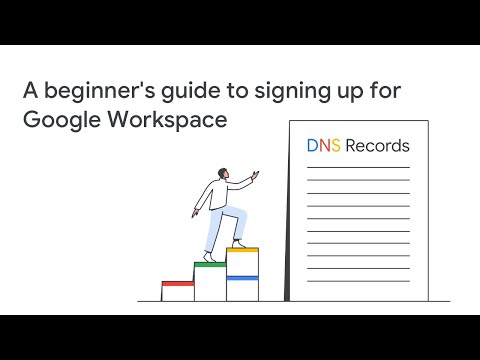
Google Workspace
Google's own 3-minute video. It shows how to sign up and connect your domain, even if you've never touched DNS.

14 days free. No card.
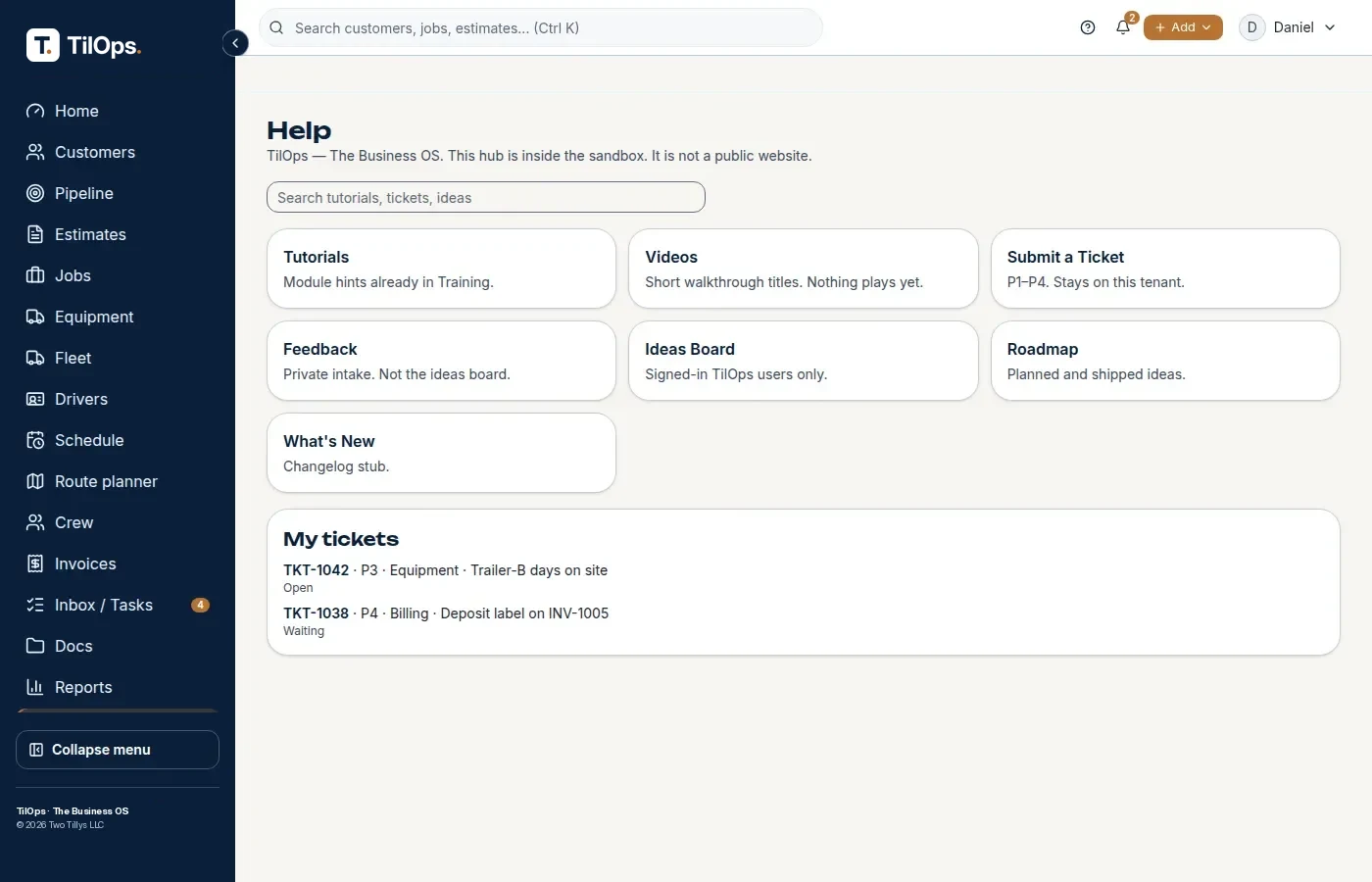
Help is inside the app.
Guides sit one click away in Help.
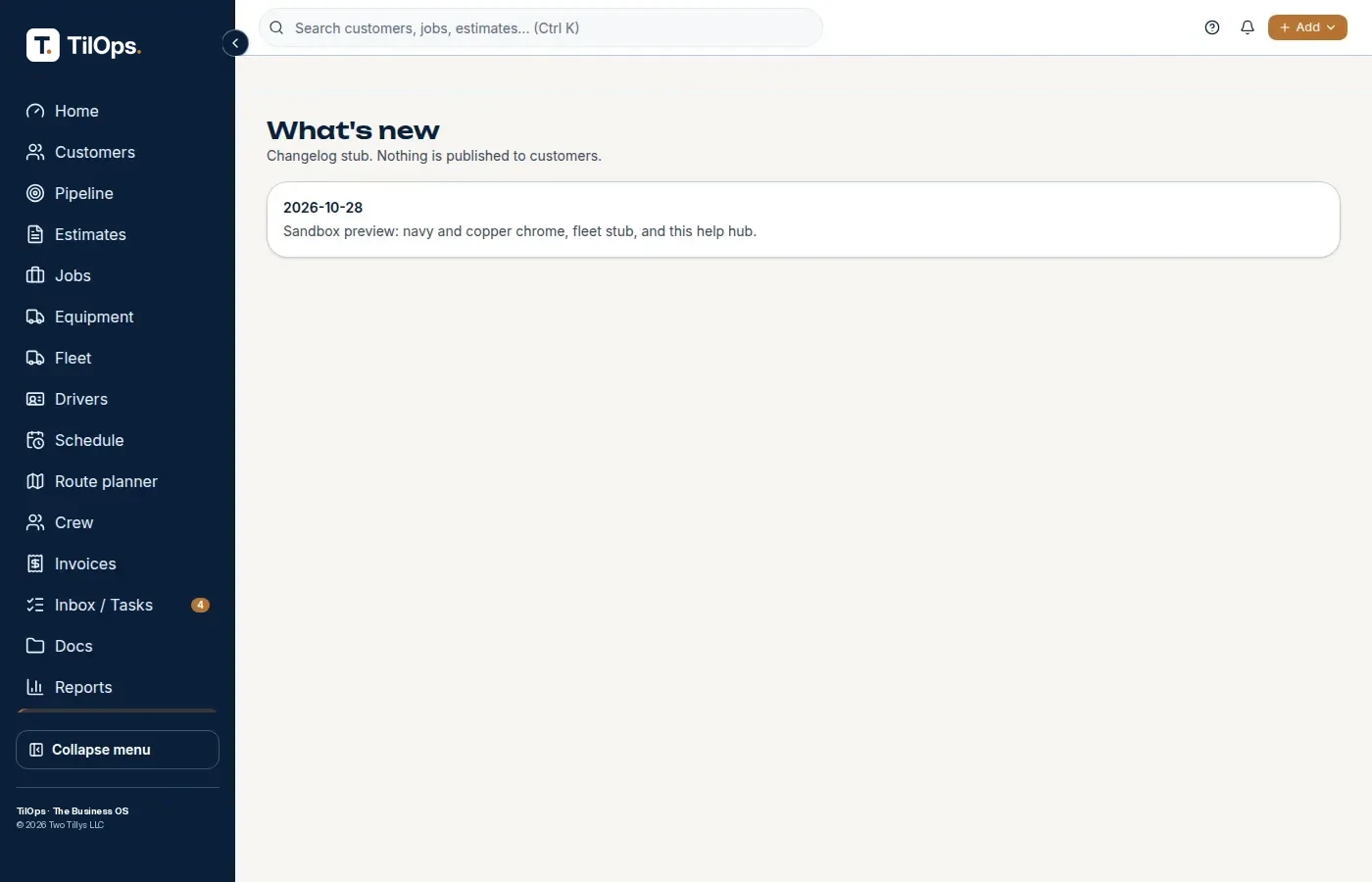
See what changed.
Read new features in What's new.
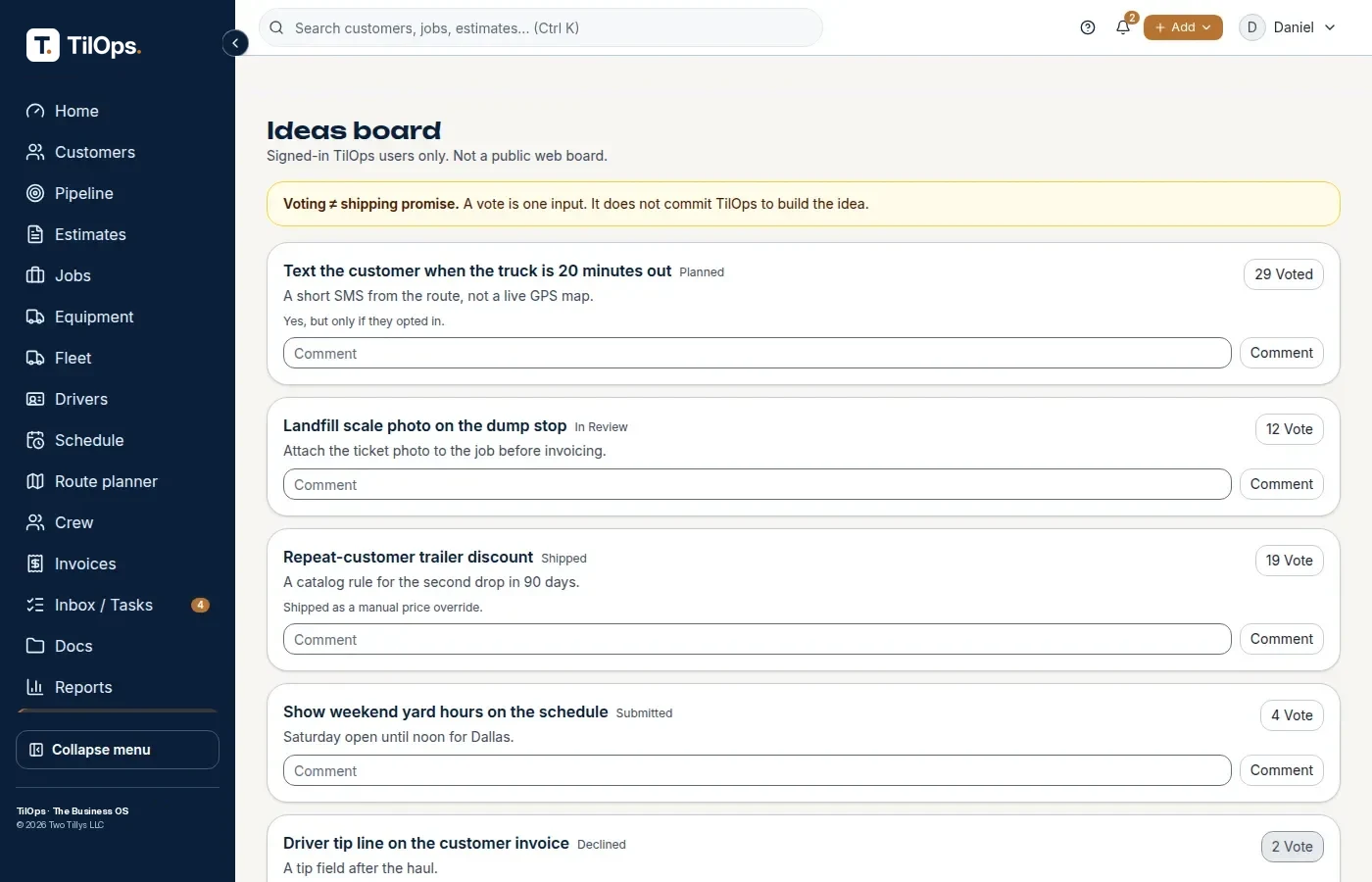
Ask for a feature.
Post and vote on the Ideas board.
Questions
How long does setup take?
About 15 minutes.
Is there video?
Video guides are Coming soon.
Where is help in the app?
Click Help in the menu.
Can I ask for a feature?
Yes, on the Ideas board.
Do I need a card to start?
No. The 14-day trial needs no card.